
How to Assist Users with Resetting their BidWrangler Password
At BidWrangler, our goal is to provide you with as many tools as possible to run your business as efficiently as possible. This support article is intended to serve as a resource to empower you and your team to confidently support bidders with password related inquiries.
Guiding Users Through Password Changes
When users reach out to your company with password/login issues, a majority of cases can be resolved on their end with a bit of guidance. This includes requests to update their existing password, or users that are unable to access their account requesting a password reset.
Using the Forgot Password Protocol
Please note: This step can be severely impacted if you are not currently using a verified domain-based email as your Company email. Please reach out to BidWrangler Support at helpdesk@bidwrangler for assistance with setting up and verifying a domain-based email.
The most common reason users will reach out requesting login assistance is when they have forgotten their password. In these instances, it is recommended you walk the user through performing a self-reset using the Forgot Password Protocol.
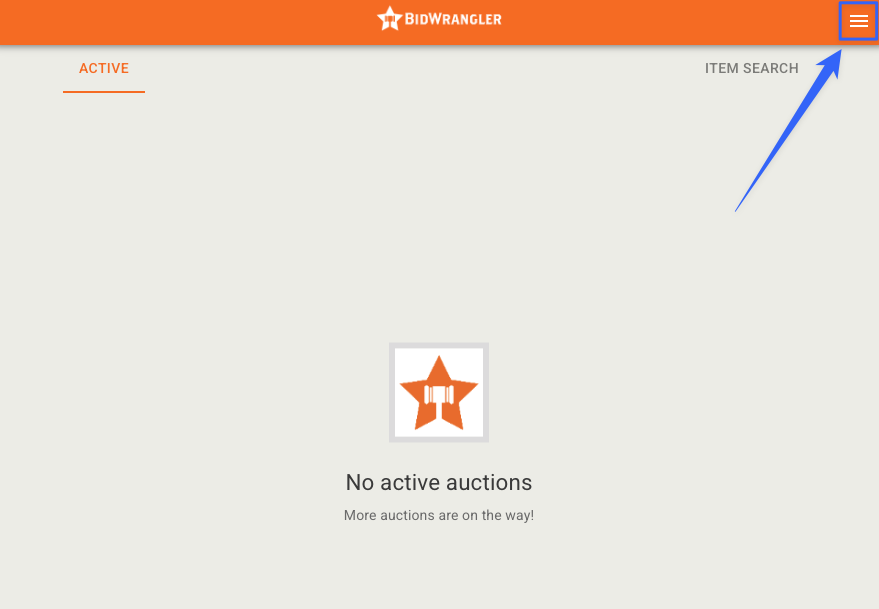
Advise the user to open the hamburger menu in the top right corner of their screen and select Sign In.
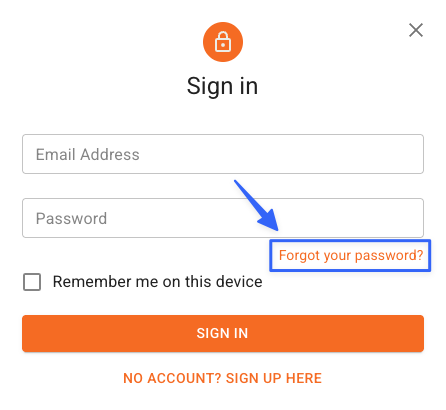
On the sign in window, direct them to the Forgot your password? option in the bottom right corner.
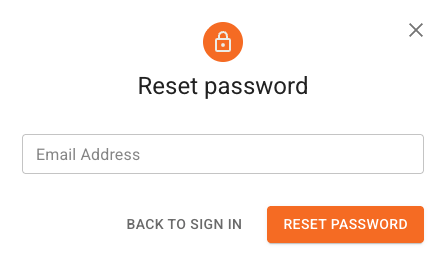
Instruct the user to enter the login email associated with their account in the field and click the Reset Password button. An email containing a link to reset their password will be sent to the email entered in the field.
If the user has not received the reset password email after a couple of minutes, you might suggest they refresh their email, check other inboxes, and look in the spam/junk folders.
In addition, the user may have a Bounce Count or Complaint Count value that is high enough to block emails from your platform. This can be reset to 0 in their user profile settings within the Admin Portal. More details on these fields can be found here.
Editing an Existing Password
If a user knows their password but wants to update it themselves, they have the ability to change their password any time they are logged into your bidding platform or mobile app.
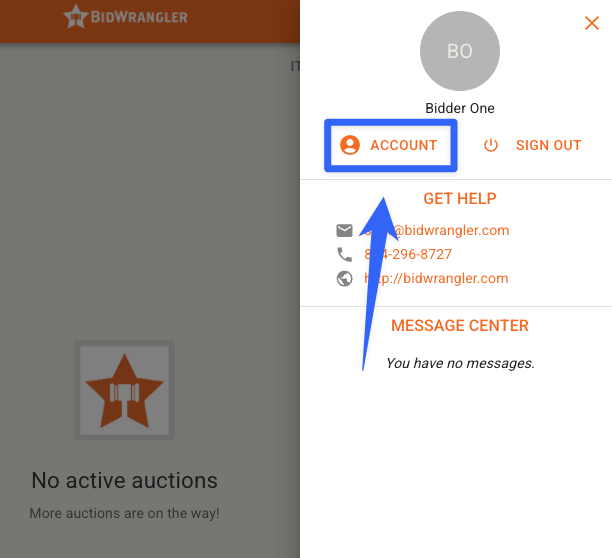
Advise the user to sign in first. Once completed, they can select the hamburger menu in the top right corner of the screen.
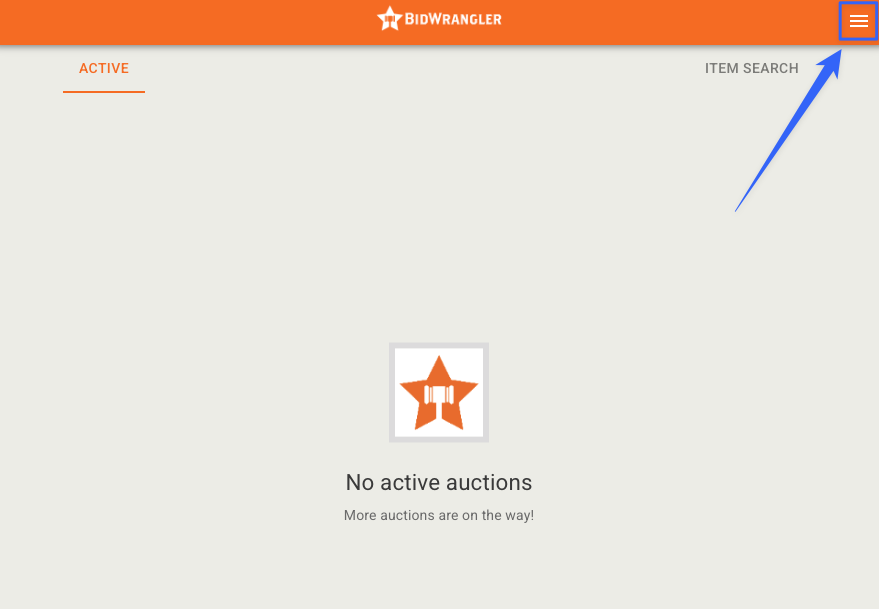
From the menu, they can select the Account option to pull up their account details page.
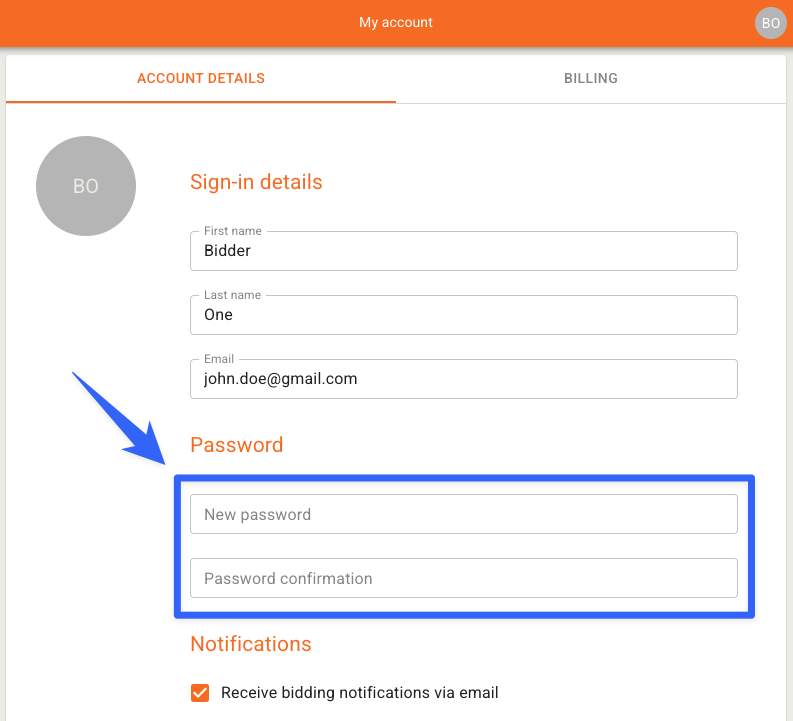
Under the Password section, new credentials can be updated under the Password and Password Confirmation fields. Once complete, the changes can be confirmed by scrolling to the bottom of the page and clicking the orange Save button.
Manually Resetting Password for a User
In some rare cases, the steps listed above may prove ineffective, and a user may need additional assistance resetting their password. Fortunately, this can be performed manually by a member of your team with Admin or Full Admin permissions.
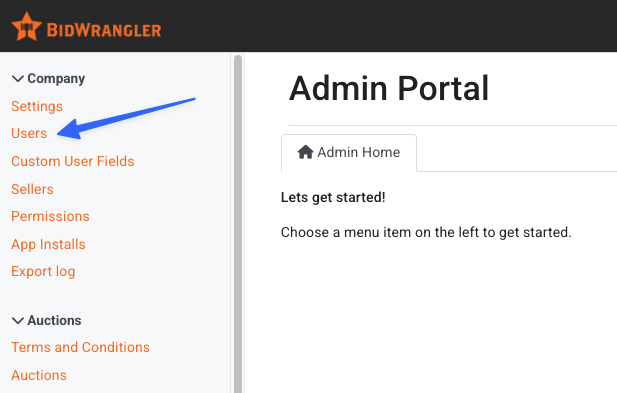
In your Admin Portal, navigate to the Users menu on the left-hand side of your screen.
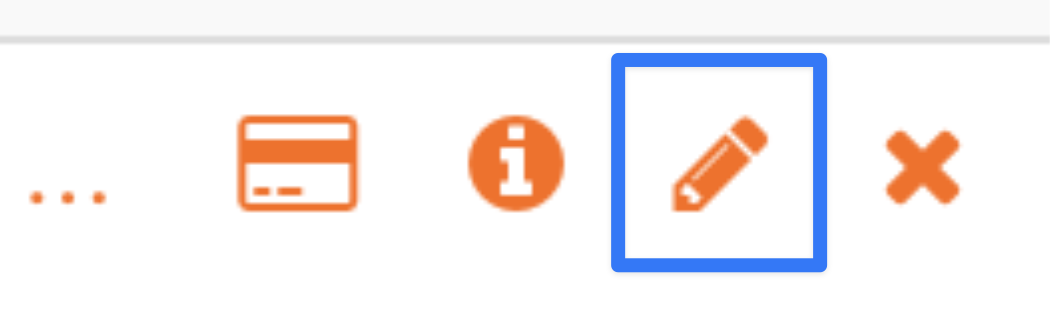
In the search box, type in the name of the person whose password you would like to reset. Once you've found their user account, click on the orange pencil icon in the right-hand column to edit the user account.
Scroll down to the Password section.

Create a strong password for the user - something with a variety of numbers, symbols and letters. Make sure you copy and paste the password in a secure location to send the user once you're done.
Ensure the password is the same in both the Password and Password Confirmation fields. Scroll to the bottom of the page and hit the orange Save button.
Congratulations! You have now updated the password for the user. You may now send them the updated password and have them log into their account.