
How do I use simulcast video streaming in my live auction?
You can broadcast live video and audio to your online bidders during a live or simulcast auction. BidWrangler's broadcast runs entirely in the browser: once it is enabled for your company and turned on in the auction's settings, the clerk starts and stops the stream from the clerking panel with a single control. There is no streaming URL, key, or third party account for you to manage.
Broadcasting must first be enabled for your company by our team, and additional charges apply. Contact helpdesk@bidwrangler.com before your sale, and we will set up the broadcast so it is ready to be enabled in your auction settings and tested from the clerking screen.
Requirements for live video capability
Supported Browsers Chrome (Preferred Option) or Firefox with Webcam/Camera (USB Connected Camera Suggested)
For a list of recommended equipment, please see this article.
Alternatively:
iPhone/iPad with Company App ("Do Not Disturb" setting suggested)
Enabling Live Video for your auction
Once the video capabilities have been added to your platform by BidWrangler, your auction settings will include the 'Broadcast' checkbox within the Customization options:
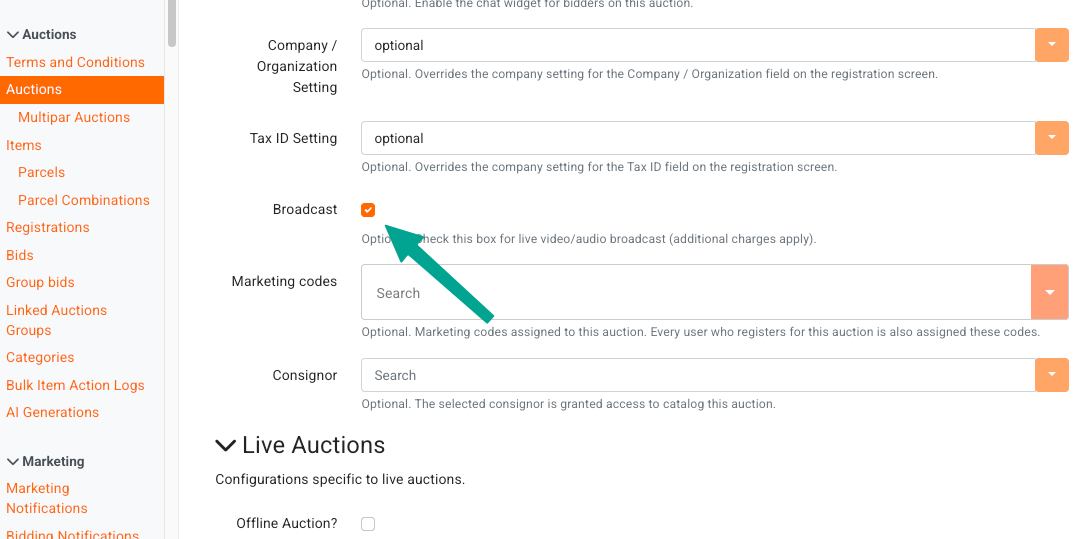
Check the box, and save your settings to enable broadcast for the auction.
Starting the Broadcast
The Broadcast feature is operated from the Online Clerking Panel. With the setting enabled, the round camera icon will display in the lower-left corner.
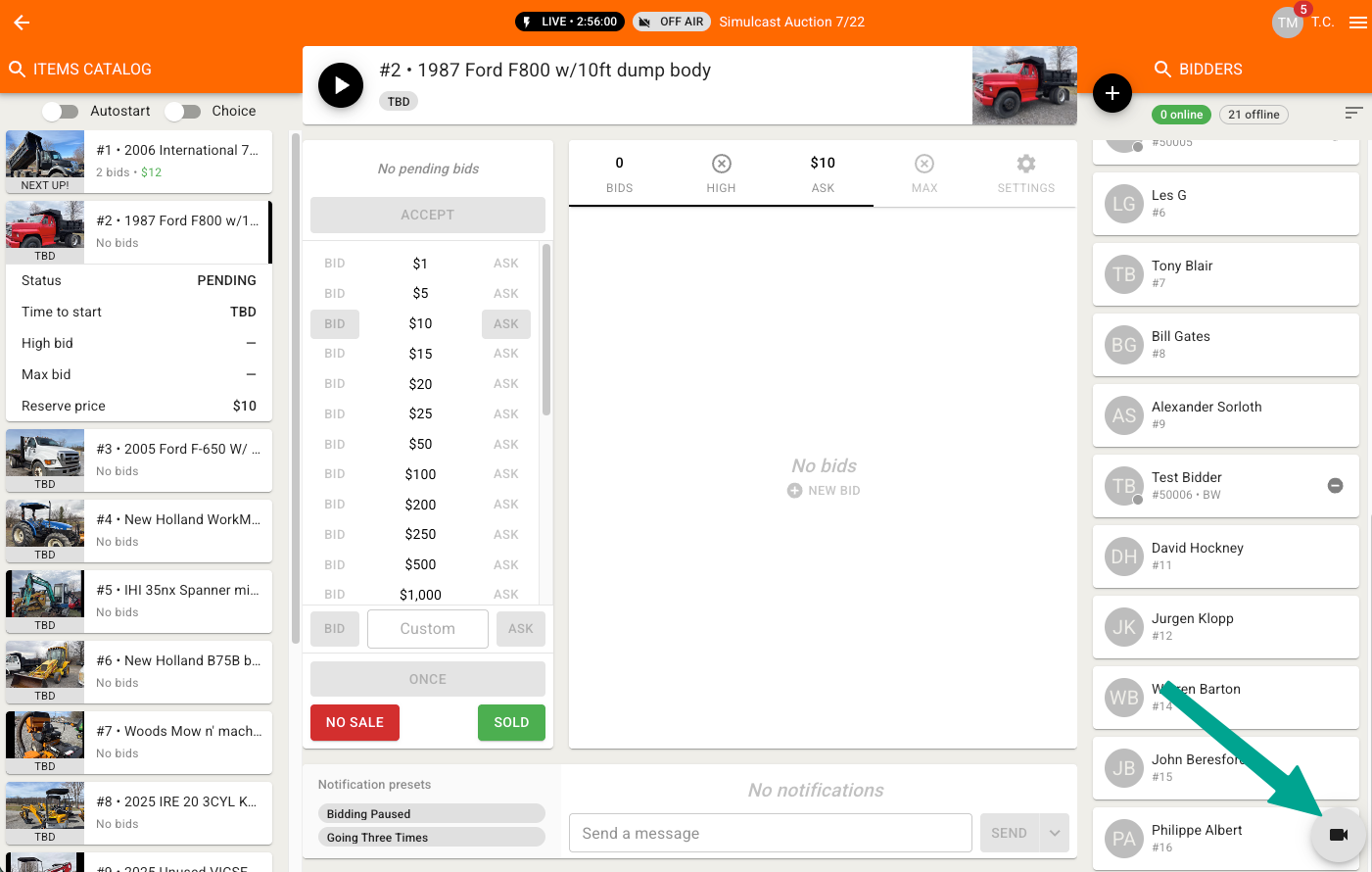
Click the camera button to turn the feature on. The first time you use the broadcast feature from whatever computer you are using, you will likely get a pop-up from your browser asking for permission to access the camera and microphone.
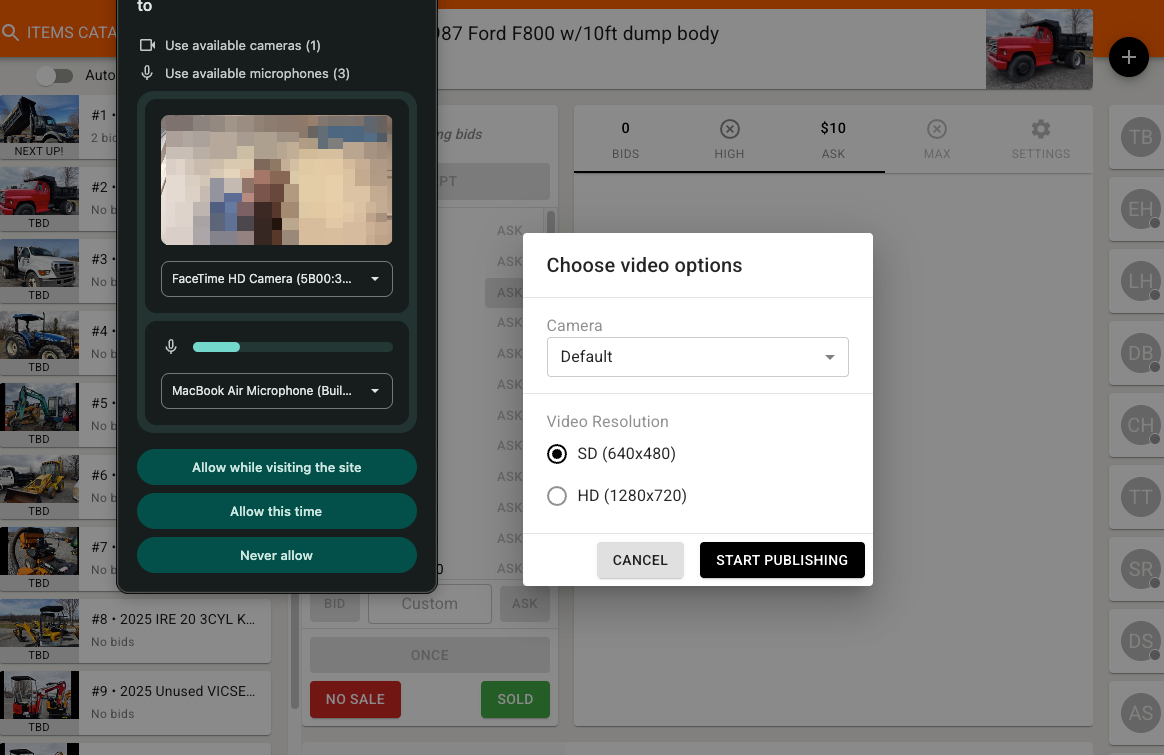
With any request for permissions, you should always allow or accept camera/microphone access or the browser can not connect to your equipment. You can select specific hardware from the drop-downs provided.
Once permission has been granted, click START PUBLISHING to begin your broadcast.
A preview of your broadcast will appear in the bottom-right corner, the broadcast status at the top of the screen will change from 'OFF AIR' To 'ON AIR' in red:
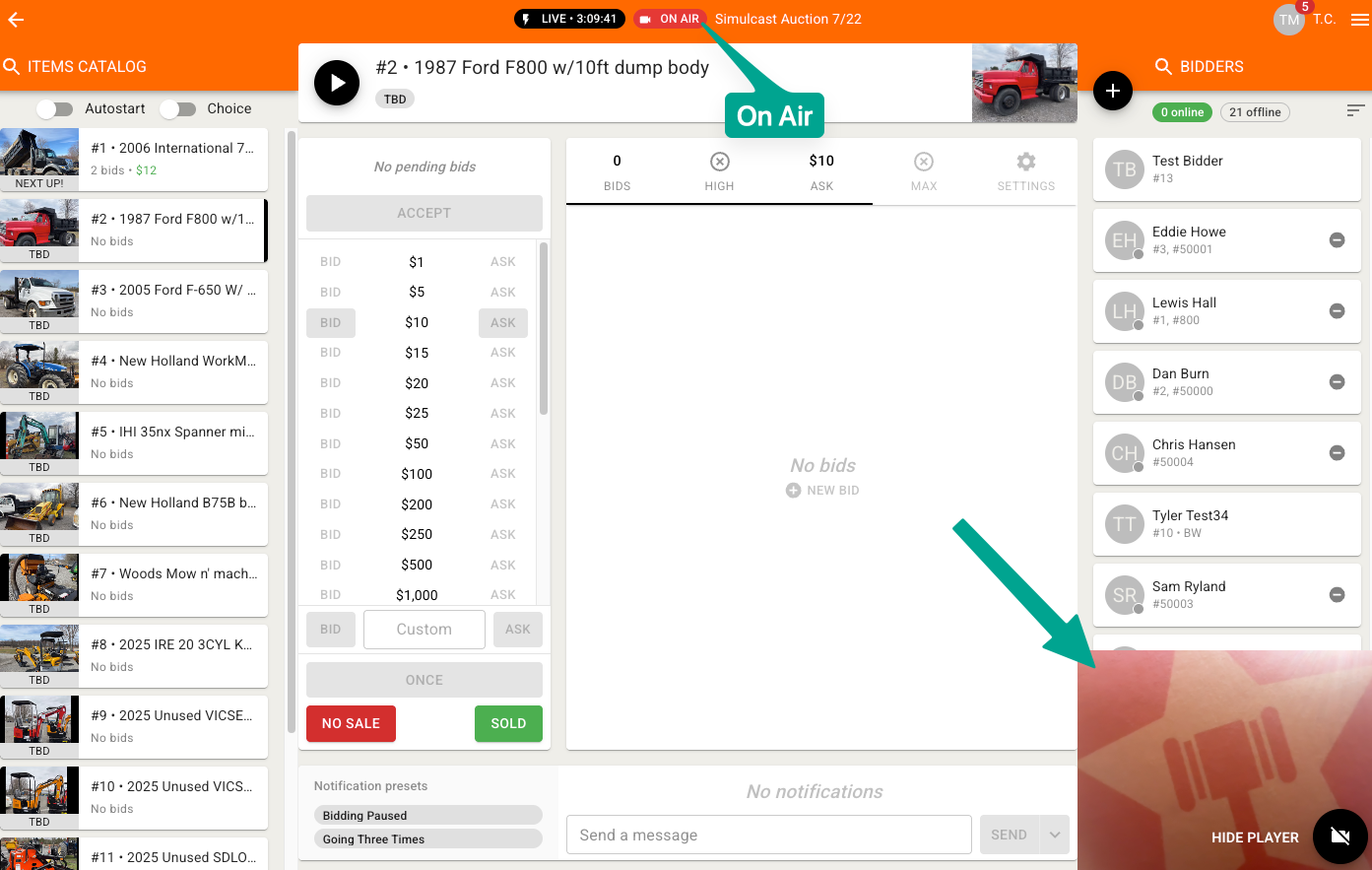
Broadcast Controls
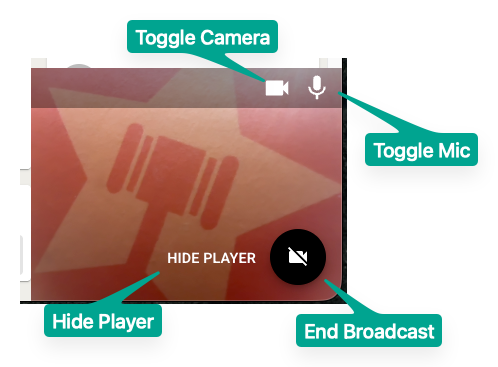
Within the preview player, you have 4 buttons:
Top Camera icon - toggles the camera on/off. Broadcast continues but the picture is disabled
Microphone icon - toggles the microphone on/off. Broadcast continues, but the sound is muted
Hide Player - minimizes the preview display. Broadcast button changes to a TV icon - click this to return to the preview screen
Camera with a line through - turns off the broadcast
Audio-Only Broadcast
If you wish to broadcast audio-only - you must select a camera when initially starting the broadcast feature, but then you can toggle the camera off from the preview screen.
Using OBS or Production Software as Your Video Source
If you produce your sale with OBS (for multi-camera setups, overlays, or lot videos), you can send the OBS output into your BidWrangler broadcast:
In OBS, click Start Virtual Camera.
In BidWrangler, start the broadcast from the clerking panel as usual.
When choosing a device, select the OBS virtual camera from the device list.
The browser picks up the virtual camera the same way it picks up a physical webcam. There is no link or stream ID to publish to, since the broadcast is controlled entirely from the browser.
Troubleshooting & Testing
We encourage you to test out your broadcast and equipment as far ahead of your auction date as possible. For more information about setting up a test auction, please see this article.
Vonage provides a Pre-call test service that can diagnose potential issues. It's good to make this part of your regular pre-auction testing.
Click here to access the test using the same computer and browser you plan on using for your broadcast and click Run Test. The test typically takes 30 seconds to 1 minute, and will provide you with a report of any issues that need your attention.
For troubleshooting common issues, please refer to this article.
Bidder's Perspective
Online bidders will view the broadcast via the bidding app or bidding platform.
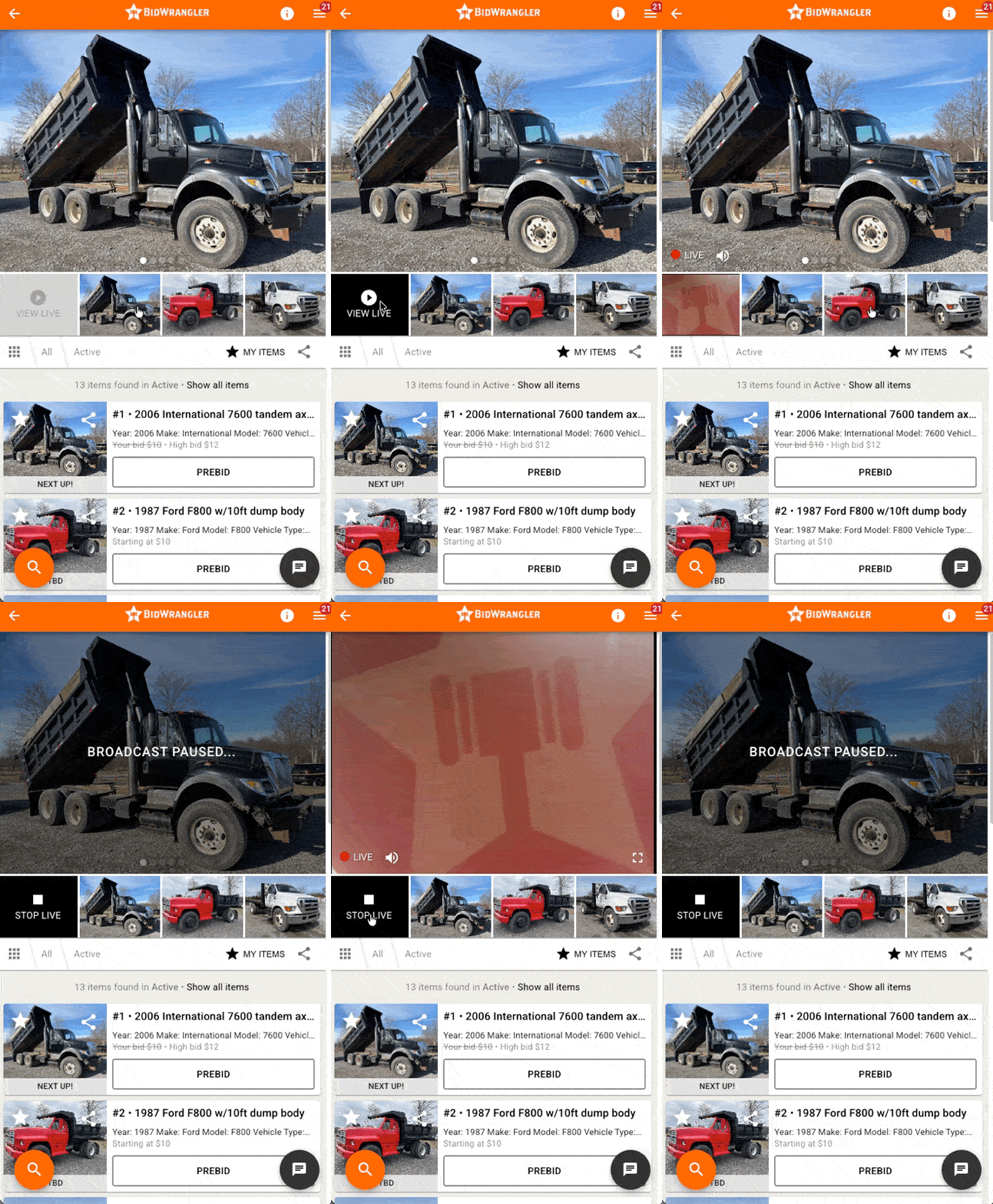
With broadcast enabled, a thumbnail appears in the auction image carousel showing 'View Live'. When the broadcast is off-air, the thumbnail is gray, when the broadcast is on-air, the thumbnail is black/white.
Clicking 'View Live' will display the broadcast in the main image frame. Clicking on any other images will place the broadcast into the gallery thumbnail view. The audio, if used, will continue regardless of where the video is displayed.
If the broadcast is off-air during the auction, the video will display 'Broadcast Paused', and will continue without the need for the bidder to click anything once re-started.
A note on additional fees
Typically, broadcast is included with a cap of 10,000 minutes per month. A charge of .0047 per minute is applied after this cap is reached.
Please check your app agreement, and reach out to helpdesk@bidwrangler.com if you have any questions.