
How do I adjust my bidding increments?
How do I adjust my bidding increments?
Adjusting bidding increments can be done for the defaults of the company, individual auctions, as well as individual items from within the BidWrangler admin portal.
To adjust the company default bid increments, navigate to the BidWrangler admin portal, select "Company - Settings", and use the Pencil icon to edit -
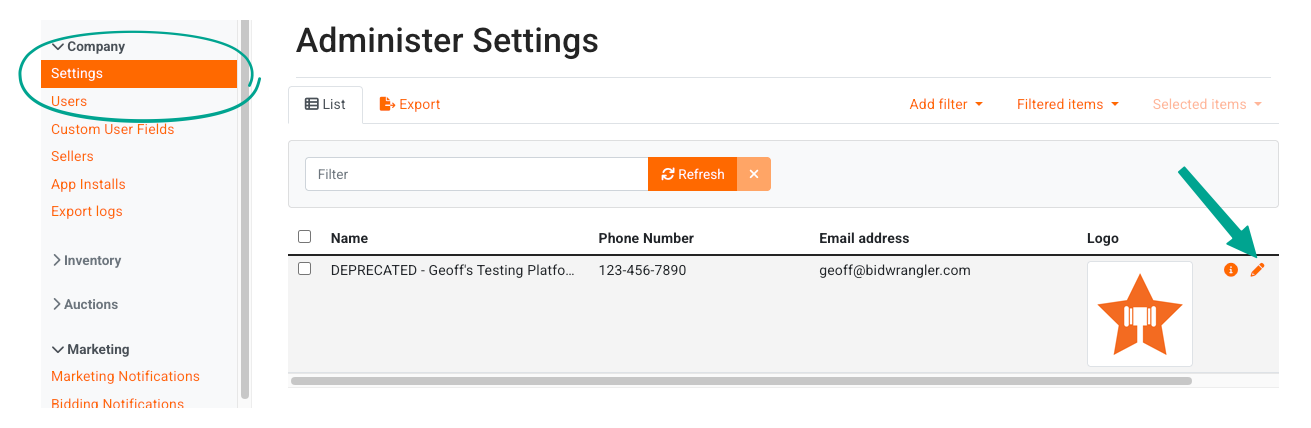
Next, scroll down the page until the dropdown "Bidding Configuration" appears, and click on the arrow. Displayed will be the options to edit default bidding increments for both live clerking buttons, as well as timed auction increments.
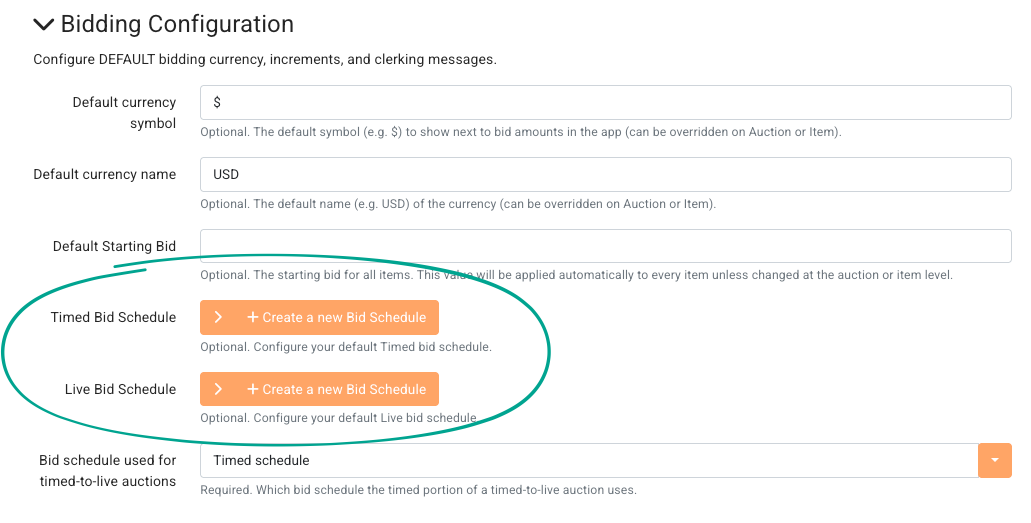
Click the drop-down arrow to view and edit your existing schedules:
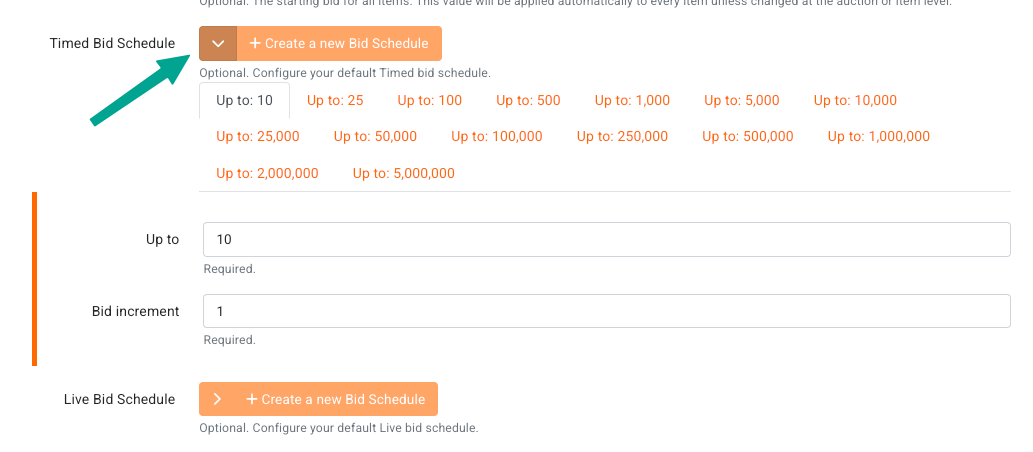
"Timed Bid Schedule" - These timed increments are set for each asking price in an auction. For example, "Up To - 5" with a "Bid Increment - 1" will ask for a $1 increment for a lot item up to $5. This schedule is set for each increasing amount listed, and can be changed by removing an existing increment, and/or creating a new increment.(NOTE: currencies and symbols can be adjusted for a specific country/region
"Live Bid Schedule" - Similar to the timed bid schedule, but applied only to auctions marked 'Live'.
Bidding increments from company defaults can be overridden for individual auctions -
To edit your increments for a specific auction, open the edit screen for that auction and scroll down to the "Bidding Configuration" options. By default, there will not be any increments since it defaults to those in the company settings, so you must click '+Create a new Bid Schedule' for every increment you wish to add:
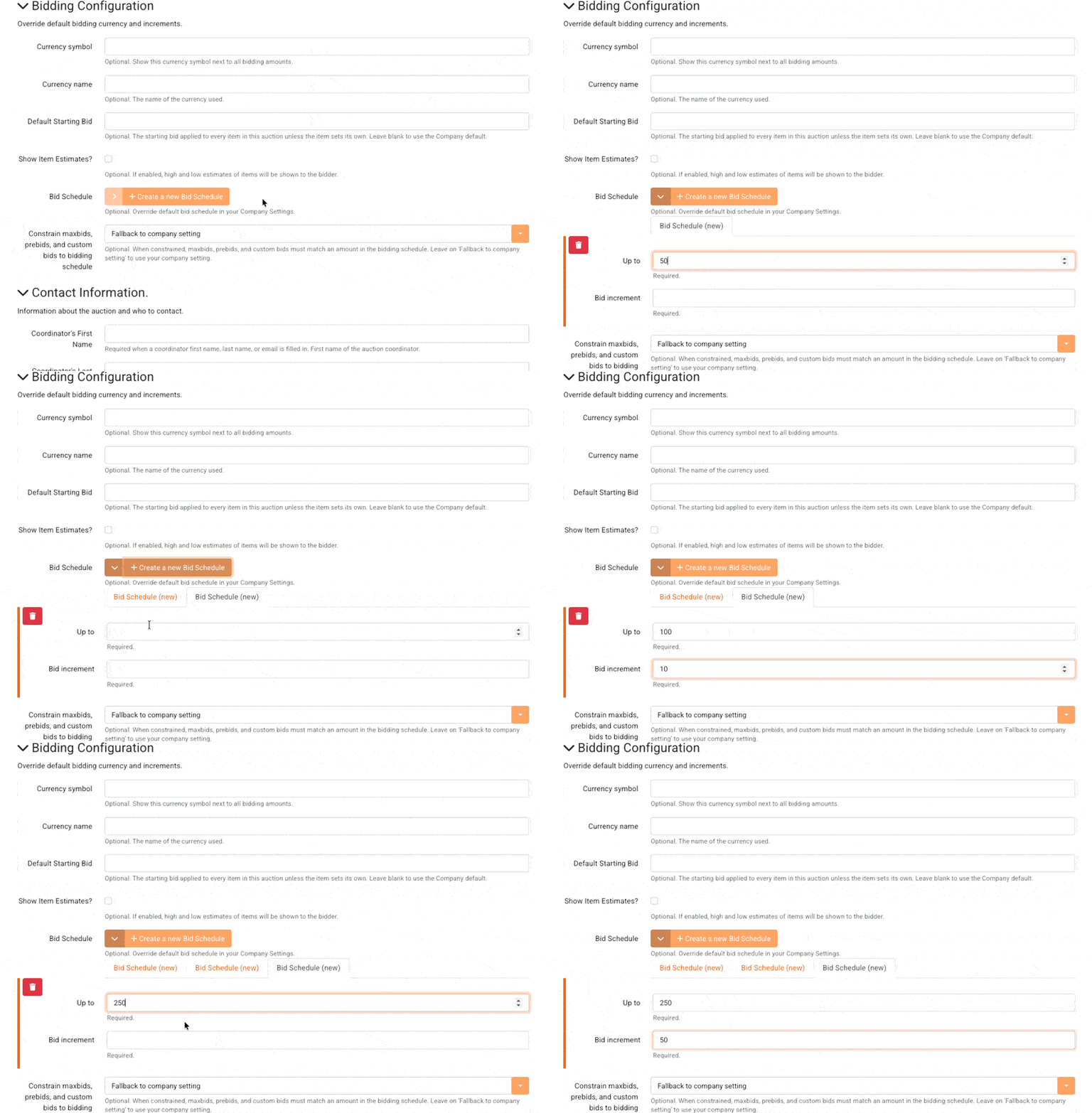
Once you save your auction settings, the tab names will be updated to show the 'Up To' amount.
Note - it's not necessary for your highest increment to be set to an extremely high amount like '100,000,000' - whatever your final increment is, the ask will remain in that increment even if it goes over the 'Up To' amount.
Bidding increments from company or auction defaults can be overridden for individual items -
To edit bidding increments for an individual item, open the edit screen for that item and scroll down to the "Bidding Configuration" options. By default, there will not be any increments since it defaults to those in the company or auction settings, so you must click '+Create a new Bid Schedule' for every increment you wish to add.
From the item settings, the process to create a new schedule is the same as described above for individual auctions.
Deleting a schedule or increment
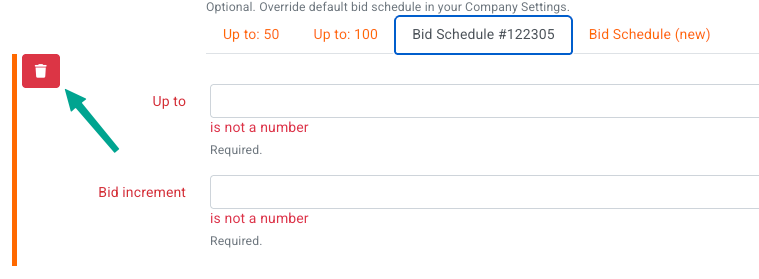
To delete an increment you must use the red trash can icon which will appear to the left of each increment when you move your mouse to that location:
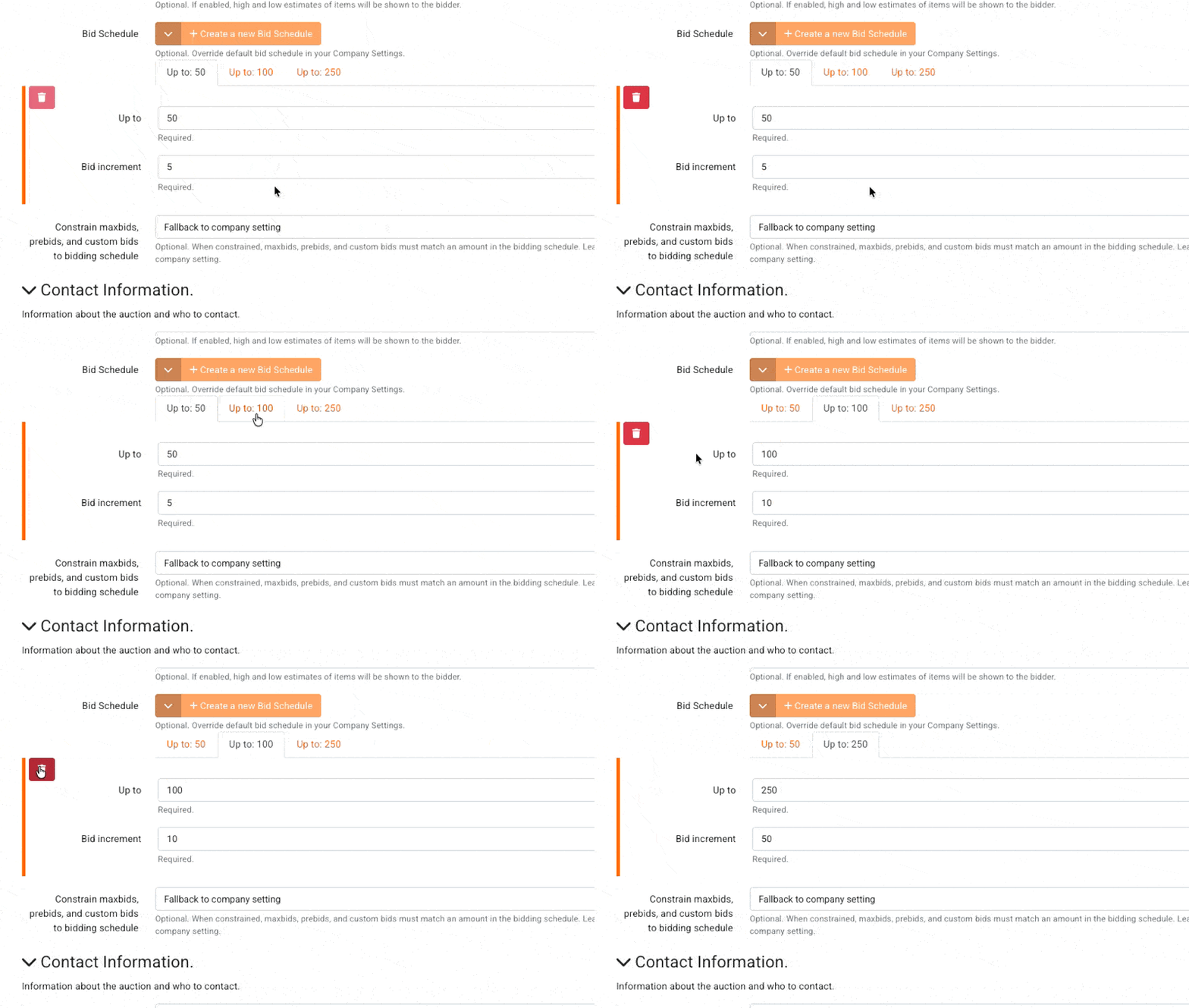
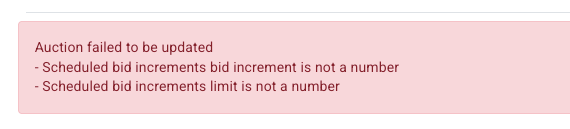
To delete the whole schedule, you must delete every individual increment. Attempting to save a bid schedule with a blank 'Up to' or 'Bid Increment' field will result in the below error message:
Can I change a bid schedule during an auction?
You can safely update bid increments on an active auction without impacting any bids already placed.
You may want to consider enabling a company setting called 'Smart Increment' - with this turned on, the system will seamlessly adjust upcoming bid amounts to fit the new increment schedule once changes are applied.
You can find this under the 'Bidding Configuration' options in your Company Settings.